
Of course you can use Zapier to post on social media. It's one of the most common ways to get started with automation. You can hook up everything from your blog's RSS feed to a Google Sheet and have it push content directly to Twitter, Facebook, LinkedIn, and more.
This is how you build a content engine that ditches the repetitive tasks and keeps your feeds consistently active.
Why Automate Social Media With Zapier?
Manually posting content across a half-dozen social platforms is a soul-crushing time suck. It pulls you away from work that actually matters, like brainstorming campaigns or talking to your audience.
By connecting the apps you already use every day, you create hands-off content pipelines. A new blog post goes live and automatically fires off an announcement to LinkedIn. A completed task in Trello triggers a promotional tweet. This isn't just about saving a few clicks; it's about embedding consistency into your content strategy.
The numbers back this up. Marketing teams that adopt social media automation see an average engagement lift of 20-30% per post and cut their content creation time by about 30%. Businesses also report a 14.5% increase in productivity alongside a 12.2% reduction in marketing costs.
Automating the repetitive parts of your workflow also cuts the risk of human error. No more missed posts, broken links, or posting at the wrong time. Your content just goes live when it's supposed to, every time.
Manual vs Zapier-Automated Social Media Posting
| Aspect | Manual Posting | Zapier Automation |
|---|---|---|
| Time Investment | High; requires dedicated time for each post. | Low; "set it and forget it" after initial setup. |
| Consistency | Prone to gaps and missed schedules. | High; posts go out on schedule without intervention. |
| Error Rate | Higher risk of typos, wrong links, or missed posts. | Minimal; reduces human error significantly. |
| Scalability | Difficult to manage across many platforms. | Easy; add new platforms or triggers with a few clicks. |
| Focus | On the repetitive task of posting. | On strategy, content quality, and engagement. |
For teams that need advanced scheduling, visual content calendars, and deep analytics, pairing Zapier with a dedicated tool like Late gives you the best of both worlds. Use Zapier as the "content collector" and pipe everything into Late's scheduling and planning interface.
Preparing for Your First Zap
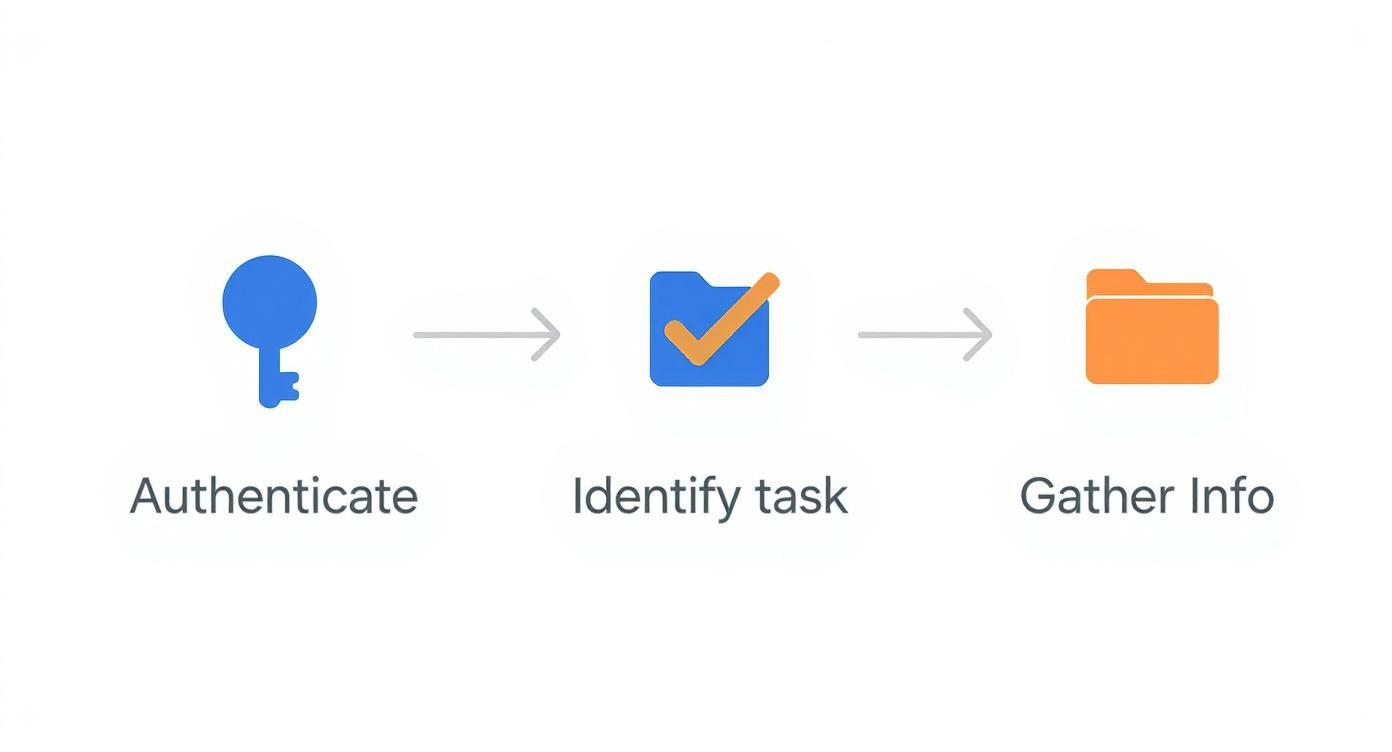
Before you build anything in Zapier, a little prep goes a long way. Get your account logins handy: Zapier credentials plus logins for every social platform you plan to connect, whether that's Twitter, LinkedIn, or Instagram.
Keep your phone nearby too. If you have two-factor authentication (2FA) enabled on your social accounts (and you should), you'll need it to verify connections during setup.
Triggers and Actions
Everything in Zapier comes down to two concepts:
- A Trigger is the event that starts your workflow. It's the "if this happens..." part.
- An Action is what happens in response. It's the "...then do that" part.
Think about a repetitive task you're tired of doing. Do you manually tweet every time a new blog post goes live? The "new blog post" is your trigger, and "posting the tweet" is your action.
What You'll Need
Depending on your Zap, you may need more than a username and password. If you're connecting a custom tool or niche CRM, you might need an API key, a unique string that gives Zapier secure access to that app. You can usually find it in the settings or developer section of the app's dashboard.
Quick example:
- The Goal: Automatically post new products from your Shopify store to your Facebook Page.
- The Trigger: A "New Product" is added in Shopify.
- The Action: "Create Page Post" on Facebook Pages.
- What You Need: Your Shopify store login and your Facebook account login.
Defining your Trigger and Action ahead of time turns a vague idea into a concrete plan. It saves you from a lot of clicking and guessing once you're inside the Zap editor.
Building Your First Social Media Post Zap
One of the most useful automations for content creators is automatically sharing new blog posts to Twitter. We'll use your blog's RSS feed as the trigger and Twitter as the action.
The key concept here is data mapping: telling Zapier where to put the information. You're telling Zapier to take the blog post's title and use it for the tweet's text, grab the article's URL for the link, and pull the featured image to attach.
Setting Up Your Trigger: New RSS Item
In the Zap editor, search for and select "RSS by Zapier" as your trigger app. The event you want is "New Item in Feed."
Zapier will ask for your blog's RSS feed URL. For most platforms like WordPress, this is your main domain with /feed tacked on (for example, yourblog.com/feed).
Once you plug that in, Zapier runs a quick test to confirm it can read your feed. When it successfully finds a recent post, you'll see sample data with all the pieces you need to build the action.
Configuring the Action: Post to Twitter
Choose Twitter as your action app and select "Create Tweet" as the event. After connecting your Twitter account, you'll land on the setup screen where data mapping happens.
- Message: Click inside the "Message" box. A dropdown of RSS feed data appears. Select the
Titlevariable to dynamically pull in each new blog post title. - URL: Same idea for the "URL" field, but select the
Linkvariable. - Image: To attach the featured image, find a variable called
ImageorEnclosure URL.
Don't just leave the message field with the title. Add your own text, like "New post:" before the dynamic
Titlefield, or throw in a few hashtags at the end. It makes your automated tweets feel a lot less robotic.
Once mapped, run a final test. Zapier grabs that sample data and posts a real tweet. Go check Twitter. If you see it, you've nailed it.
Mastering data mapping unlocks most of what Zapier can do for social media. As you get comfortable, check out automating social media posting for more advanced workflows. And if you're automating video, know the platform rules upfront, like Instagram video length limits.
Advanced Scheduling with the Late Zapier Integration
Directly posting via Zapier works great for simple, immediate updates. But when your strategy needs more control, a direct "fire-and-forget" Zap won't cut it.
Pairing Zapier with Late changes that. Instead of blasting content out the second it's ready, you use Zapier to collect and organize content, sending it to Late for scheduling, visual planning, and performance tracking.
Why Connect Zapier to Late?
A Zapier-to-Late workflow adds a layer of control that direct posting doesn't have. Content lands in Late as a draft for review before it goes live. This matters a lot for any brand that cares about timing and quality.
Imagine automatically gathering user-generated content (UGC), new product photos from a shared drive, or customer testimonials from a form. All that material lands in your Late media library. From there, your team can plan the Instagram feed visually, write polished captions, and schedule everything for the right time.
This approach bridges raw automation and thoughtful curation. You get Zapier's efficiency for gathering materials and Late's scheduling power for planning and publishing.
A Practical Example: Automating User-Generated Content
Say you run a brand that encourages customers to share product photos. Manually hunting those images down, downloading them, and re-uploading them is a huge time drain.
Here's how to automate it:
- The Trigger: A new file is added to a specific Dropbox folder (where you save approved UGC).
- The Action: Choose Late as the action app and select the Upload Media action.
- Mapping the Fields: Map the file from the Dropbox trigger to the media field in Late. Add tags or notes to keep things organized.
That's it. Every time you drop an approved photo into that Dropbox folder, it appears in your Late media library, ready to schedule for Instagram or TikTok. No tedious downloading and re-uploading.
For developers wanting even more control, a social media scheduling API is worth exploring.
Direct Zapier Posting vs Using the Late Integration
When should you post directly, and when should you add Late to the mix? Here's a quick breakdown.
| Feature | Direct Zapier Post | Zapier to Late Workflow |
|---|---|---|
| Scheduling | Immediate or with a simple "Delay" step. Basic control. | Advanced scheduling, content calendar view, optimal time slots. |
| Visual Planning | None. Posts are sent out individually and unseen. | Visual feed planner for platforms like Instagram. |
| Analytics | None within Zapier; you have to check each platform. | In-depth performance analytics directly within Late. |
| Approval | None. Content is posted instantly once the Zap runs. | Content lands as a draft or in the media library for review. |
| Best Use Case | Quick updates, RSS-to-Twitter feeds, simple notifications. | Curated content campaigns, visual branding, UGC management. |
The direct-to-social method is great for simple, high-frequency updates that don't need oversight. For anything that's core to your brand's content strategy, the Zapier-to-Late workflow gives you the professional-grade control you need.
Getting Your Zaps to Run Smoothly
Even the best automations hit a snag sometimes. When you're using Zapier to post to social media, something as small as an expired login token or a quirky image format can stop everything. The trick is knowing where to look.
Your first stop should always be Zapier's Task History. It logs every time your Zap ran, showing what worked and what didn't. When a Zap fails, Task History pinpoints the exact step and gives you a reason, like "Authentication failed" or "Image file size too large."

Most fixes are simple. Head to "My Apps" in your Zapier dashboard and reconnect the social account. Other times it's a data mapping issue where a network is rejecting the input, and you just need to tweak the setup.
Fine-Tuning Your Zaps
Fixing things is one thing. Optimizing is where you really level up. Zapier has built-in tools that add intelligence to your automations:
- Filters: Your "if/then" logic gate. Set up a filter that only posts a blog article to LinkedIn if the title contains "B2B." No more sharing irrelevant content.
- Formatter by Zapier: Manipulates data on the fly. Trim a long title to fit Twitter's character count, or reformat a date to look more natural.
- Delay by Zapier: One of the biggest mistakes is posting the second a trigger fires. Adding a Delay step introduces a more human-like pause. Wait 15 minutes after a new product goes live before announcing it on Facebook, for example.
Layer these tools and you build Zaps that don't just work, they work smart. An optimized Zap anticipates problems and handles different types of data gracefully.
Common Hiccups
Incorrectly mapped fields are a classic issue. It's easy to accidentally drop post text into a URL field. Always double-check your data mapping.
Media formatting trips people up too. Every platform has rules for image and video sizes, dimensions, and aspect ratios. Your Zap fails if it tries to push a massive high-res photo somewhere that needs a compressed version. A good workaround is using a service like Dropbox or Google Drive as a middleman. Some Zaps can also include an action to resize an image before posting.
Answering Your Top Zapier Questions
Can Zapier Post to Instagram Stories or Reels?
Not directly. Instagram's API doesn't allow a simple Zap to automatically publish Stories or Reels.
But a two-step workflow using Late handles this well. Set up a Zap to collect content. For example, your trigger is a new video dropped into a Google Drive folder. The action sends that video straight into your Late Media Library. From there, you schedule it as a Reel or Story inside Late, with all the creative touches a direct Zap can't handle.
Zapier handles the boring part (gathering content). Late gives you the tools to publish to Instagram's trickier formats the right way.
How Do I Automatically Add Hashtags to My Posts?
You've got a few options:
- Static Hashtags. In your Zap's action step, type your hashtags directly into the message field. Every post gets the same set. Quick and done.
- Dynamic Hashtags. Use a Google Sheet with a "Hashtags" column. Map that column to your post's text field. Each post pulls in a unique set from your spreadsheet.
- Advanced Logic. Use Zapier's Formatter tool to add specific hashtags based on keywords in your post's text. If the title contains "marketing," the Formatter automatically adds #MarketingTips and #DigitalStrategy.
What if a Social Media Account Disconnects?
It happens. A changed password, an expired security token. When it does, your Zaps will start failing, and Zapier will email you about it.
Fixing it is straightforward. Go to "My Apps" in your Zapier dashboard, find the app that's causing trouble, and hit the "reconnect" button. Log in again to re-establish the connection.
Once reconnected, check your Task History for failed Zaps and hit "Replay" to run them again. This makes sure a temporary glitch doesn't cause you to miss posts.
Ready to build a centralized social media workflow? With Late, you can connect Zapier to a unified API for ten major platforms, with advanced scheduling, visual planning, and solid reliability. Start building for free with Late.

Miquel is the founder of Late, building the most reliable social media API for developers. Previously built multiple startups and scaled APIs to millions of requests.
View all articlesLearn more about Late with AI
See what AI assistants say about Late API and this topic