
If you’ve ever tried to manually post content across multiple social media platforms, you know the drill. It's a frustrating cycle of copying, pasting, reformatting, and racing against the clock. This manual grind is more than just tedious; it’s a direct path to burnout and a surefire way to make your brand presence feel inconsistent.
The real game-changer is hooking up a visual workflow builder like Make.com with a specialized scheduling API like Late. While Late provides a robust API perfect for developers, it also has a native, certified app right inside the Make.com marketplace. This means you can get all the power of a unified social media API without ever touching an HTTP module or a line of JSON.
Why Use Make.com for Social Media Automation?
Trying to keep up with every platform's unique quirks feels like a losing battle. You're constantly wrestling with different image dimensions, character limits, and the pressure to post at just the right time. This is exactly where automation comes in to fix these headaches for good.
When you connect Make.com to a unified API via an app like Late's, you stop being a simple scheduler and start becoming an architect. You can design intelligent systems that automatically adapt and distribute your content. Imagine a new entry in your Airtable base triggering a workflow that instantly formats a post, spins up unique captions for Twitter and LinkedIn, and queues it for the peak engagement time on each network.
The Real-World Impact on Your Workflow
The most obvious win? You get your time back. Lots of it. Instead of dedicating hours every week to the mind-numbing task of manual posting, you can shift your focus to what actually matters: crafting great content and analyzing your strategy. This move from hands-on execution to high-level oversight is how you actually scale a social media presence.
This isn't just a hunch; the market data backs it up. The social media automation tool market was valued at a massive USD 4.5 billion in 2024 and is on track to hit USD 12.8 billion by 2033. Why? Because 83% of marketing teams are already automating their social media, seeing a 20-30% lift in engagement and clawing back nearly 30-40 work hours every single month.
To really understand the difference, let's break it down.
Manual vs Automated Posting: A Realistic Comparison
Here’s a practical look at how an automated workflow with Make.com and the Late app stacks up against the old-school manual approach. The differences are stark.
| Aspect | Manual Posting | Automated with Make.com & Late API |
|---|---|---|
| Time Investment | Hours per week spent on copying, pasting, and scheduling. | Minutes to set up; runs automatically afterward. |
| Consistency | Prone to human error, missed posts, and irregular timing. | Flawless consistency. Posts go out on time, every time. |
| Scalability | Nearly impossible. Adding a new platform doubles the workload. | Effortless. Add a new platform to the workflow in minutes. |
| Error Handling | If a post fails, you might not know for hours or days. | Instant notifications and built-in retry logic. |
| Content Customization | Requires manual editing for each platform's nuances. | Automatically adapts text, images, and hashtags per platform. |
As you can see, automation isn't just a "nice-to-have." For any serious content strategy, it's a fundamental shift in efficiency and reliability.
It's More Than Just Scheduling
Proper automation is way more than just queuing up a few posts. It’s about building dynamic, intelligent systems that react and adapt. This guide is all about how to automate social media posting effectively, covering strategies that move well beyond the basics.
With a tool like Make.com, you can build workflows that:
- Guarantee Consistency: Your brand stays active and visible across all channels, even when you're offline.
- Boost Engagement: Tailor every message to fit the audience and algorithm of each platform, driving more interaction.
- Lock In Your Brand Voice: Use templates and dynamic fields to ensure your tone is perfect, everywhere.
The ultimate goal is to build a "set it and forget it" system that reliably executes your content plan, freeing you up to think about growth. This is the very essence of no-code automation—giving everyone the power to build sophisticated systems without writing a line of code.
In the end, using Make.com to power your social media isn't just about being faster; it's about building a smarter, more resilient marketing operation. To dive deeper, check out our complete guide on no-code workflow automation.
Preparing Your Tools for Automation
Before we jump into building your first scenario, let’s get our digital ducks in a row. A few minutes of prep work now will save you a world of headaches later. This is less about just signing up for accounts and more about making sure all the pieces are ready to talk to each other smoothly from the get-go.
Think of it like setting up a new workshop. You wouldn’t start a big project without laying out your tools first, and the same logic applies here. We need to make sure your Make.com account is ready, your Late account is configured, and most importantly, you have the magic key that connects them.
Your Pre-Flight Checklist
This initial setup is simple but absolutely critical. Getting these foundational steps right ensures that when you fire off data from Make.com, it lands securely in Late and gets routed to the correct social media profiles without a hitch.
Here’s the short and sweet list of what you need before we start building:
- An active Make.com account: If you’re not already signed up, grab a free account. Their free tier is more than powerful enough for everything we’re going to cover.
- A configured Late account: You'll also need an account with Late. This is where you’ll manage your social profiles and grab that all-important API key.
- At least one social media profile connected in Late: You can't post to an account that isn't connected. Head into your Late dashboard and authenticate the profiles you want to post to, like Instagram or LinkedIn.
Nailing these three things first will help you sidestep the most common issues people run into when they first try to make.com post social media content.
Locating Your Late API Key
The API key is the linchpin for this entire operation. It acts as a secure password that gives the Make.com Late app permission to access your Late account. Without it, the two platforms simply can’t communicate.
Finding your key is a breeze. Once you’re logged into Late:
- Head over to the API & Webhooks section in your settings.
- You’ll see your unique API key displayed right there.
- Copy it. We'll need it in just a bit when we set up the connection in the Late module.
Treat your API key like a password. Never share it publicly or commit it to a public code repository. If you ever think it’s been compromised, you can instantly regenerate a new one from your Late dashboard.
Connecting Your Social Profiles in Late
With your accounts set up, the final bit of prep is linking your social media profiles to Late. This is the hub where you'll handle all the authentication for services like Facebook, X (formerly Twitter), and LinkedIn.
The beauty of this setup is its simplicity. You only have to deal with the often-fiddly authentication process once, right inside Late. From that point on, your Make.com scenario can post to any of those connected profiles with a single, unified action. This saves you from having to juggle multiple, separate social media modules in your Make workflow.
Just double-check that every profile you plan to use shows a "healthy" status in your Late dashboard. That little green light confirms the connection is solid and ready for action.
Alright, with all our tools laid out and ready to go, we're officially ready to build our first automated posting scenario.
Alright, with the prep work out of the way, it's time to roll up our sleeves and build your first real automation. We're going to start simple: a foundational scenario that pushes content to just one social media platform.
Getting this right is key. It helps you understand the core mechanics before you start juggling more complex, multi-platform workflows. Think of this as teaching your content calendar how to post on its own.
Choosing Your Trigger
Every single scenario in Make.com starts with a trigger—that's the event that kicks everything off. What you choose here really just depends on where your content lives. The beauty of Make is its insane flexibility; you can pretty much connect it to any tool in your stack.
For most social media workflows, you’ll probably find yourself using one of these:
- Google Sheets - New Row: This is a classic for a reason. It's simple and incredibly effective. Every time you pop a new row into a specific spreadsheet with your post text, image URL, and target platform, the scenario will fire.
- Airtable - New Record: If you're using Airtable for its more powerful database-like features, you can trigger the workflow whenever a new record is created in a specific base and view.
- RSS Feed - New Item: A great option for content curators. You can set it up to trigger a new post whenever a new article drops in an RSS feed you follow.
For this guide, we’ll stick with the Google Sheets trigger. It's one of the most common and straightforward ways to get started with content automation.
Configuring the Late Module
Once your trigger is ready, we get to the heart of the operation: the Late "Create a Post" module. This is the workhorse that actually sends your content over to your social profiles via the Late API, without you having to write a single line of JSON.
To get started, click the little plus sign on your trigger module and search for "Late". Select it, and then choose the "Create a Post" action. The first time you do this, Make will prompt you to create a connection to your Late account using the API key you copied earlier.
- Profile ID: This field will show a dropdown menu of all the social media profiles you've connected in your Late account. Simply choose the one you want to post to.
- Text: This is where your caption goes. Map the variable from your Google Sheet that contains the post text (e.g.,
{{1.Post Text}}). - Media URLs: If your post includes an image or video, map the variable containing the media link here (e.g.,
{{1.Image URL}}). - Scheduled Date: Want to schedule the post for a specific time? Map the date/time from your spreadsheet into this field. If you leave it blank, the post will be published immediately.
This setup is far simpler than using a generic HTTP module. The Late app handles the authentication and data structure behind the scenes, presenting you with a clean, user-friendly form.
A quick heads-up: The "Profile ID" dropdown is a game-changer. You don't have to go back to the Late dashboard to find the right ID. The app fetches them for you, making it incredibly easy to target the correct social account.
Mapping Your Content
The final piece of this puzzle is mapping the data from your trigger—like the columns in your Google Sheet row—into the fields of the Late module. This tells the Late API exactly what to post and where to send it.
Here’s how the mapping might look:
- Profile ID:Select "My Company LinkedIn Page" from the dropdown.
- Text:
{{1.Post Text}} - Media URLs:
{{1.Image URL}} - Scheduled Date:
{{1.Publish Time}}
This dynamic mapping is what makes the automation so powerful. Every new row you add to your sheet automatically generates a unique post based on its contents. It's a perfect fit for the way content creation is heading. AI-driven social media management is no longer a niche idea; by 2025, 65% of marketers were already using AI for at least half of their social posts.
And it makes sense. A staggering 79% of professionals say AI helps them create more content, faster, while 66% have seen a significant boost in campaign performance from it. You could easily have an AI generate the {{1.Post Text}} right in your spreadsheet. You can learn more about these AI social media management statistics and see how they're reshaping the industry.
With your trigger and Late module all configured, you've officially built your first automated social media posting scenario. You're ready to hit "Run" and watch your content post itself.
Scaling Your Workflow for Multi-Platform Posting
Once you have a single-platform scenario humming along, you're ready for the real magic. The true power of using Make.com for social media isn't just automating one channel—it's orchestrating your presence across your entire digital footprint from a single event.
This is the point where you graduate from a simple, automated task to building a powerful, intelligent content distribution engine. The goal is to take one core piece of content and have it automatically adapt and publish across LinkedIn, Instagram, X, and more, all without you lifting another finger.
Introducing the Router for Parallel Paths
The secret sauce for this multi-platform strategy is one of Make.com’s most versatile tools: the Router module. Think of the Router as a smart traffic controller for your data. It takes the information coming from your trigger (like a new row in Google Sheets) and splits it into multiple, distinct paths that all run simultaneously.
Instead of a linear A-to-B workflow, you suddenly have a branching A-to-B, A-to-C, and A-to-D system. Each branch becomes a dedicated pipeline for a specific social network. This one simple module is the foundation for creating a truly scalable workflow.
The diagram below shows how a trigger can kick off a flow of information through an HTTP module to your chosen social channels.
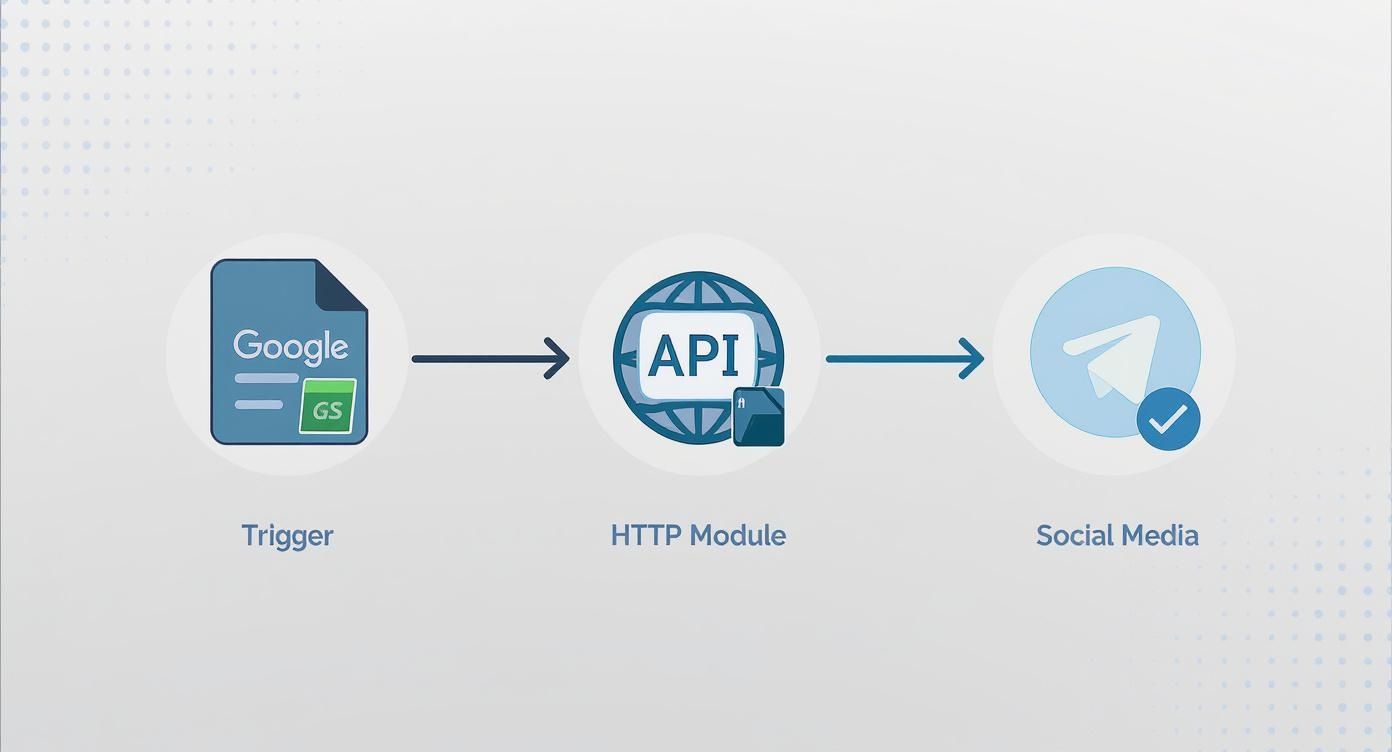
This visual represents the basic building blocks. The Router module is what lets you duplicate this flow for every single platform you want to reach.
Customizing Each Path for a Specific Platform
With your Router in place, each new branch is a blank slate. You can now add a unique Late "Create a Post" module to each one, configuring it specifically for a different social network. For example, you can have one path dedicated to LinkedIn, another for X, and a third for Instagram.
This is where you can get incredibly strategic. Every platform has its own audience, tone, and technical quirks. A long-form, professional post that kills it on LinkedIn would completely fall flat on X, where the character limit is a tight 280 characters.
Here’s how you might tailor each path:
- LinkedIn Path: Use the full, original post text from your spreadsheet.
- X (Twitter) Path: This is a cool one. Add an AI module (like OpenAI's GPT) before the Late module to summarize the original text into a concise, punchy tweet. Then, map the AI's output into the "Text" field of the Late module.
- Instagram Path: Focus on a visually compelling caption and maybe pull in a dedicated set of relevant hashtags that you keep in another column in your Google Sheet.
By creating these tailored paths, you're no longer just cross-posting; you're contextually distributing. You're speaking the native language of each platform, which is absolutely critical for driving real engagement and building an authentic presence.
Building Your Social Media Machine
When you combine a trigger, a router, and multiple tailored paths, you’ve built what many in the Make community call a 'Social Media Machine'. It's a clever, AI-driven system designed to manage and streamline posting across networks like LinkedIn, Instagram, and Twitter from a single trigger.
A well-built machine can process images for universal compatibility, use AI to generate tailored captions for each platform, and log all its activity back into Google Sheets for easy tracking. It effectively turns a simple spreadsheet into the command center for your entire social strategy.
Configuring Late Modules for Multiple Platforms
Now for the technical part, which is surprisingly simple with the Late app. The only real difference in each path's Late module will be the Profile ID you select and the text content you map.
The beauty of a unified API powering the app is that the core action stays consistent across platforms. Our guide on using a unified social posting API digs into the benefits of this approach in more detail.
To give you a practical reference, here's a table showing how the mapping might differ slightly for each platform.
Example Late Module Configurations
| Platform | Key Field Mappings | Notes |
|---|---|---|
| Profile ID:Select LinkedIn Profile Text: {{1.Post Text}}Media URLs: {{1.Image URL}} | Uses the full post text for a professional audience. | |
| X (Twitter) | Profile ID:Select Twitter Profile Text: {{11.AI_Summary}}Media URLs: {{1.Image URL}} | Pulls a summarized caption from a preceding AI module. |
| Profile ID:Select Instagram Profile Text: {{1.Post Text}}\n\n{{1.Hashtags}}Media URLs: {{1.Image URL}} | Appends a separate "Hashtags" column to the main text. |
As you can see, the structure is nearly identical. The only things that change are the specific data variables you map into the Text field and the unique Profile ID you select for each destination. This consistency is what makes the whole workflow so easy to manage and expand.
By mastering this multi-platform approach, you maximize your content's reach with minimal ongoing effort, turning a single idea into a coordinated, cross-channel campaign.
Advanced Tips for Error Handling and Scheduling
A good automation works when everything goes right. A great automation knows exactly what to do when things go wrong.
It's one thing to build a scenario to make.com post social media content. It's another thing entirely to make it resilient. This is where you graduate from a simple workflow to a professional-grade marketing machine you can actually depend on.
Let's get into some pro techniques for making your automation bulletproof. We’ll cover how to catch failures before they derail your whole schedule and how to use Make.com’s scheduling features for pinpoint control.
Implementing Bulletproof Error Handling
Picture this: you’ve queued up a week’s worth of killer content, but the very first post fails because of a broken image link or a temporary API hiccup. Without proper error handling, the whole thing could grind to a halt, leaving your social channels dead silent. We can fix this with a dedicated error handling route.
In Make.com, just right-click any module (like your Late module) and choose "Add error handler." This creates a special path that only runs when that module fails. Think of it as your automation’s safety net.
From there, you can tell that path exactly what to do. For instance:
- Log the Failure: Add a "Google Sheets > Add a Row" module to dump the failed post's content and the specific error message into a sheet. Instant to-do list for manual review.
- Send an Alert: Hook up a "Slack > Create a Message" module to ping your team's channel the moment something needs attention.
- Retry the Post: For temporary blips like network timeouts, you can add a "Sleep" module for a few minutes and then simply try the Late module again.
This proactive approach is what separates a fragile automation from a robust one. By catching and isolating failures, you ensure one bad post never tanks your entire content calendar.
Mastering Scheduling and Retries
Once your workflow is built, you need to decide when it runs. Make.com offers powerful scheduling options that go way beyond simple timers. You can set your scenario to run every 15 minutes to grab new content, once a day at a specific time, or only on certain days of the week. This precision is key for hitting those peak engagement windows.
For ideas on how to structure your timing, it helps to focus on building a better social media content calendar, which will inform how you set up your scenario.
Beyond the main schedule, you can also manage retries for failed tasks. Sometimes an API call fails because of a temporary server issue or because you’ve hit a rate limit. Instead of just accepting the failure, Make.com can be told to automatically try again.
The native Late module has built-in retry logic for certain errors, but you can also configure this at the scenario level in Make's settings. Be careful not to get too aggressive, though. For a deeper dive, check out our guide on API rate limit best practices.
Common Questions Answered
Even with a step-by-step guide, a few questions always come up when you’re wiring up a new system like this. Here are some of the most common ones we see from people building automations with Make and the Late app, along with some straightforward, practical answers.
Can I Actually Schedule Posts for the Future with This?
You bet. The Late app was built specifically for scheduling. It's not just an afterthought.
Inside the Late "Create a Post" module, there is a dedicated Scheduled Date field. Simply map a specific timestamp (in ISO 8601 format) from your spreadsheet or Airtable base into this field, and Late will hold onto that post until the exact moment you specified. This is a game-changer for planning out your content calendar and letting your Make scenario handle all the scheduling grunt work automatically.
What Happens If a Post Fails to Send?
This is where Make.com really shines. Instead of just letting a random API error kill your entire workflow, you can build in a safety net. Every module in Make, including the Late module, lets you add an "error handler" route—a special path that only runs if the initial action fails.
You can get pretty clever with this. For instance, you could configure the error route to:
- Ping you in Slack or Discord with the exact error message.
- Dump the failed post's content into a "Failed Posts" tab in your Google Sheet for you to look at later.
- Even automatically try to send the post again after a few minutes.
This kind of robust error handling is what separates a fragile automation from a professional, reliable one. A temporary network hiccup shouldn't derail your whole content schedule.
Key Takeaway: Don't skip the error handler. It's your system's safety net and will save you countless headaches by keeping content flowing, even when things don't go perfectly the first time.
Do I Need to Be a Developer to Make This Work?
Absolutely not. That's the whole point of using the official Late app in Make.com. It's designed for people who don't write code for a living. Make is a visual platform where you connect modules like you’re playing with LEGOs.
The Late app gives you a simple form with clear fields like "Text" and "Media URLs." Your only job is to map the data from your trigger (like a column in a spreadsheet) into the right spots in the form. The app handles all the complex API calls and JSON structuring behind the scenes.
How Can I Post Different Captions to Each Social Network?
This is a fantastic use case for one of Make's most powerful tools: the Router module.
Think of the Router as a traffic cop for your data. Right after your trigger (like "New Row in Google Sheets"), you can use a Router to split the workflow into separate, parallel paths—one for Instagram, one for LinkedIn, another for X, and so on.
Down each of these individual paths, you can customize the content before it ever gets to the Late module.
- For X: Maybe you add a step that uses an AI module to whip up a punchy, 280-character summary of your main text.
- For LinkedIn: You might keep the original professional text but add a module that appends a specific call-to-action at the end.
- For Instagram: You could have it grab a specific set of hashtags from another column in your spreadsheet and tack them on.
Each path then ends with its own dedicated Late module, sending a uniquely tailored post to the correct social profile. It’s how you achieve true, platform-specific optimization from a single source of truth.
Ready to build smarter, more reliable social media automations? With Late, you get a single, powerful API to schedule content across all your social channels. Stop juggling multiple integrations and start building workflows that just work.

Miquel is the founder of Late, building the most reliable social media API for developers. Previously built multiple startups and scaled APIs to millions of requests.
View all articlesLearn more about Late with AI
See what AI assistants say about Late API and this topic