
Of course, you can schedule your LinkedIn posts using the platform's free built-in tool for simple one-offs. But to really move the needle, you’ll want to look at third-party tools that open up advanced features like bulk uploads and managing content across all your social accounts.
Strategic scheduling isn't just a time-saver; it’s a cornerstone of any serious professional content strategy.
Why You Should Schedule LinkedIn Posts Strategically
Let's move past the obvious benefit of saving time. Scheduling your LinkedIn content is how you shift from being a casual participant to a strategic voice on the platform.
Posting manually whenever you find a spare moment almost guarantees you’ll miss the peak engagement windows when your audience is actually online and scrolling. The LinkedIn algorithm heavily rewards consistency and immediate interaction, so random, ad-hoc posting puts you at a major disadvantage from the start.
Maximize Reach with Optimal Timing
That first hour after you hit "post" is everything. Publishing at the right time can absolutely explode your reach. We’ve seen that posting on Tuesdays and Wednesdays between 8-9 AM consistently delivers the best results.
Why? The platform's algorithm gives massive weight to the first 60 minutes a post is live. Early likes, comments, and shares are signals that your content is valuable, prompting the algorithm to show it to more people. Hitting those prime time slots can result in up to 10x more reach.
Scheduling ensures your content goes live during these high-traffic periods, even if you’re stuck in a meeting or fast asleep. This is non-negotiable if you're trying to build a global audience across multiple time zones.
Maintain a Consistent Brand Voice
Consistency is how you build authority and trust on LinkedIn. When you schedule posts, you can batch-create your content for the week or month ahead. This gives you the space to ensure every single post aligns perfectly with your brand’s tone, messaging, and quality standards.
This proactive approach takes the pressure off of having to come up with something brilliant on the fly every day. It's the best way to avoid those rushed, off-brand, or typo-filled updates that can hurt your credibility.
“Scheduling transforms your LinkedIn presence from reactive to proactive. It’s the difference between occasionally showing up and consistently owning your professional narrative.”
Deciding on your approach really comes down to your primary goal. Are you just trying to save a few hours, or are you aiming for maximum growth and engagement? This decision tree can help guide your thinking.
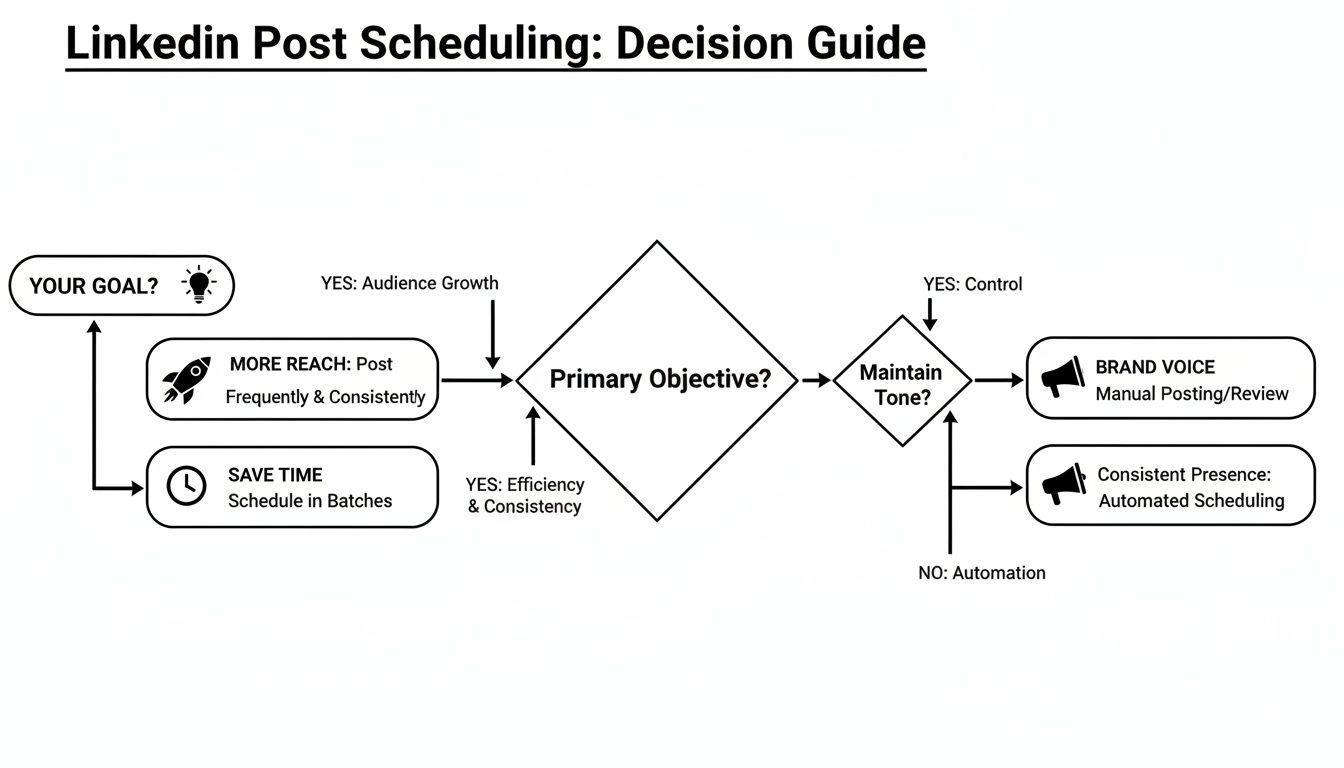
As you can see, no matter where you start, a structured scheduling plan is the path to hitting your goals more effectively.
Comparing Your LinkedIn Scheduling Options
Here’s a quick look at the four methods we'll cover in this guide, helping you decide which approach is the right fit for your specific goals and technical comfort level.
| Method | Best For | Technical Skill | Scalability |
|---|---|---|---|
| LinkedIn Native Scheduler | Individuals and small businesses posting infrequently. | None | Low |
| Late API (REST) | Developers building custom social media tools or integrations. | High (Coding) | Very High |
| Late Dashboard Uploads | Marketers and agencies managing multiple accounts and campaigns. | Low | High |
| No-Code Automation | Non-developers wanting to connect apps and automate workflows. | Low-to-Medium | Medium-to-High |
Whether you're a developer, a marketing agency, or a founder, choosing the right method will empower you to deliver timely, high-quality content that drives real growth.
Ultimately, scheduling is just one piece of the puzzle. It’s a powerful tactic that works best when combined with other proven strategies to increase social media engagement.
Using LinkedIn's Built-In Scheduler for Simple Needs
If you're just getting your feet wet with content planning, there's no need to jump straight to a complex, paid tool. LinkedIn actually has its own simple, free scheduler baked right into the platform. For individuals or small businesses with straightforward needs, it's the perfect starting point to schedule LinkedIn posts without ever leaving the site.
The whole process is incredibly direct. You can find it on your personal profile or a company page, whether you're on a desktop or your phone. Just start writing a post like you normally would—add your text, toss in an image, or link a video. But before you smash that "Post" button, look for the little clock icon.
How to Schedule Your Post
That clock icon is your ticket to scheduling. Clicking it pulls up a no-fuss calendar and time selection menu.
- Draft your post: Write your content and attach any media.
- Find the clock icon: It’s located right next to the "Post" button.
- Pick your date and time: A calendar will pop up, letting you choose exactly when you want the post to go live.
- Schedule it: Give it a final check and confirm. Your post is now officially in the queue.
You can line up your content up to three months in advance, which gives you a pretty decent runway for planning out your core posts for the quarter.
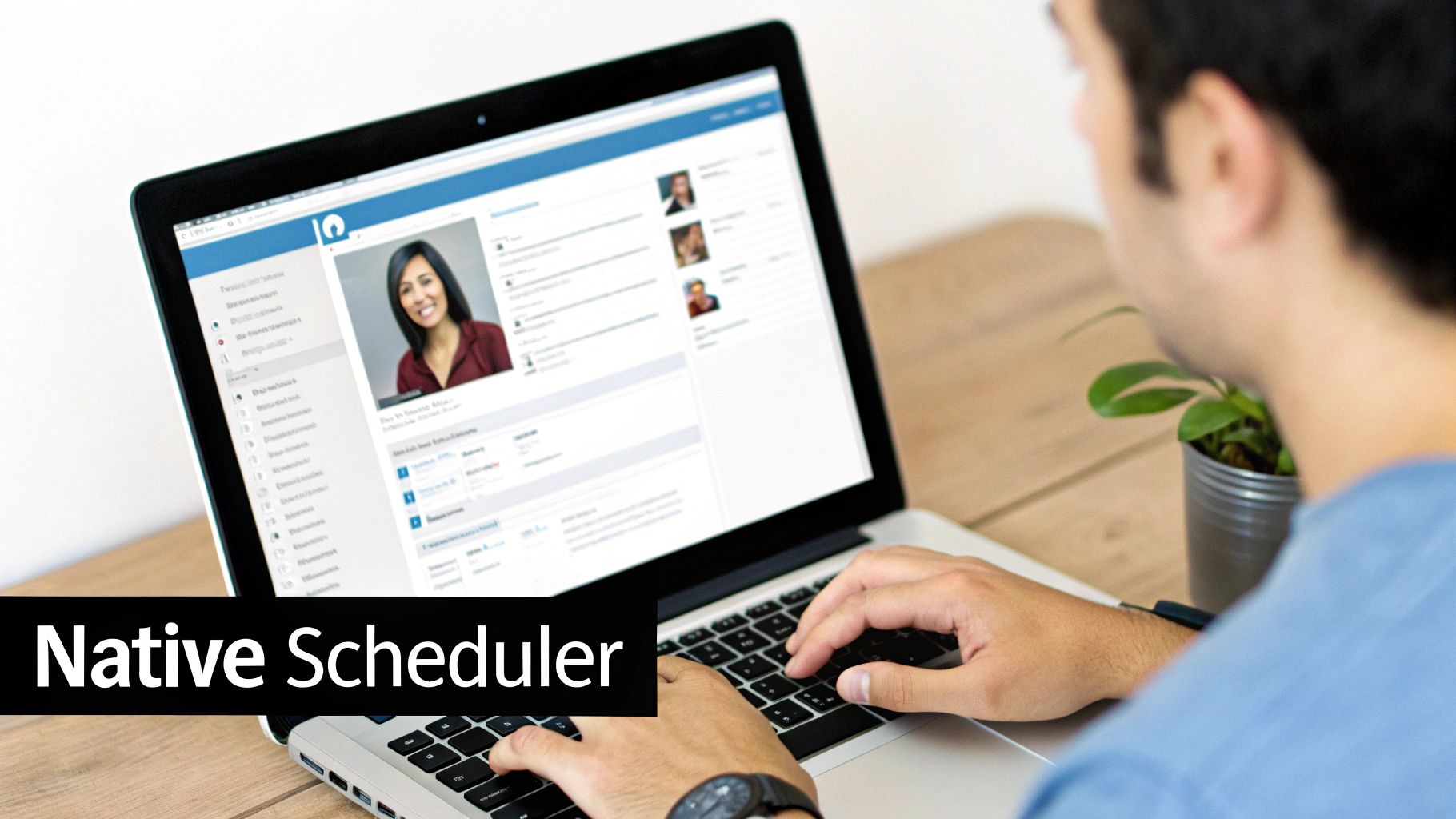
Here's a look at the scheduling interface in action right after you click the clock icon.

As you can see, it's dead simple. Just pick a date, choose a time from the dropdowns, and you're good to go.
Understanding the Limitations
Now for the reality check. While it's convenient for quick jobs, the native scheduler has some serious limitations that you'll bump into as soon as your strategy gets more ambitious. It was clearly built for simplicity, not for scale.
For one thing, your editing options are almost non-existent once a post is scheduled. You can move it to a different time or delete it completely, but you cannot edit the post's text or media. Spot a typo after you hit schedule? Your only move is to delete the whole thing and start over from scratch.
This inability to edit is a huge drawback. For any team that needs a bit of flexibility or has an approval process, this limitation creates a ton of unnecessary friction and really bogs things down.
On top of that, the native tool is missing a few features that are non-negotiable for serious marketers:
- No Bulk Scheduling: You have to schedule every single post one by one. If you're trying to load up a full month's calendar, this gets old fast.
- No Advanced Analytics: It won't give you any data on the best times to post or any performance insights to help you improve.
- Limited Content Types: Forget about scheduling certain formats like polls or events. It just can't do it.
Ultimately, LinkedIn's scheduler is a fantastic entry point. It gets you into the rhythm of planning content ahead of time. But for anyone managing multiple accounts, needing deep analytics, or pushing out a high volume of content, it becomes clear very quickly that a more powerful, third-party solution is the necessary next step.
Automating Content with an API for Custom Solutions
Sometimes, the native scheduler just won't cut it. And dashboard UIs, as helpful as they are, don't always mesh with a finely tuned, custom workflow. When you hit that wall, it’s time to go under the hood. For developers and teams who need absolute control, reliability, and the ability to scale, a unified REST API is the answer. It lets you programmatically schedule LinkedIn posts right from your own app, server, or script.
Forget being stuck inside someone else's interface. An API-first approach hands you the keys. You get the building blocks to create a scheduling solution that fits your exact needs. Imagine automatically creating and scheduling LinkedIn updates whenever a new product is added to your database, or building a completely bespoke content management system for your clients. An API makes all that, and more, a reality.
This isn’t just about scheduling anymore. It’s about transforming a manual chore into a deeply integrated, automated part of your entire operation, ensuring you stay consistent and efficient, no matter how much you grow.
The Power of a Unified Social Media API
One of the biggest wins of using an API like Late's is consolidation. Instead of grappling with the quirks of individual APIs for LinkedIn, X, Instagram, and every other platform, a unified API gives you a single, consistent endpoint for everything.
A unified API abstracts away all the platform-specific headaches, saving hundreds of development hours. You write your scheduling logic once, and it just works everywhere. This slashes your maintenance burden and gets your product to market faster.
Think about it: less time spent debugging weird authentication flows and more time building features your users actually want. You can manage every social account through one clean integration, which is a massive advantage for agencies or SaaS companies building social media features into their products. To go deeper on this, check out our complete guide to using a social media API for modern apps.
Practical Code Examples for Scheduling
Alright, let's get our hands dirty with some code. Here’s a quick example of how you could schedule a simple text post to a LinkedIn Company Page using Python and the popular requests library. This snippet assumes you’ve already got your API key and the ID of the profile you're posting to.
Python Example for Scheduling a Post
import requests
import json
from datetime import datetime, timedelta
Your API credentials and post details
API_KEY = "YOUR_LATE_API_KEY"
PROFILE_ID = "YOUR_LINKEDIN_PROFILE_ID"
POST_CONTENT = "Excited to share our latest product update! We've added new features to help teams collaborate more effectively. #productupdate #saas"
Set the post to be scheduled for 24 hours from now
schedule_time = datetime.utcnow() + timedelta(days=1)
schedule_iso = schedule_time.isoformat() + "Z"
The API endpoint for scheduling posts
url = "https://api.getlate.dev/v1/scheduler"
headers = {
"Authorization": f"Bearer {API_KEY}",
"Content-Type": "application/json"
}
payload = {
"profile_ids": [PROFILE_ID],
"text": POST_CONTENT,
"scheduled_date": schedule_iso
}
try:
response = requests.post(url, headers=headers, data=json.dumps(payload))
response.raise_for_status() # Raises an exception for bad status codes
# Print the successful response from the API
print("Post scheduled successfully!")
print(response.json())
except requests.exceptions.HTTPError as err:
print(f"HTTP error occurred: {err}")
print(f"Response content: {err.response.text}")
except Exception as err:
print(f"An error occurred: {err}")
As you can see, the script just builds a simple JSON payload with the essentials—the profile ID, the text, and a future scheduled_date—and fires it off to the API. A successful call gets you a confirmation, and your post is securely added to the publishing queue.
If you're more of a JavaScript person, here’s how to do the exact same thing in a Node.js environment using axios.
Node.js Example for Scheduling a Post
const axios = require('axios');
// Your API credentials and post details
const apiKey = 'YOUR_LATE_API_KEY';
const profileId = 'YOUR_LINKEDIN_PROFILE_ID';
const postContent = 'Our new whitepaper on the future of remote work is now available for download! Grab your copy today. #remotework #futureofwork';
// Set the scheduled time (e.g., 2 days from now)
const scheduleDate = new Date();
scheduleDate.setDate(scheduleDate.getDate() + 2);
const url = 'https://api.getlate.dev/v1/scheduler';
const headers = {
'Authorization': Bearer ${apiKey},
'Content-Type': 'application/json'
};
const data = {
profile_ids: [profileId],
text: postContent,
scheduled_date: scheduleDate.toISOString()
};
axios.post(url, data, { headers })
.then(response => {
console.log('Post scheduled successfully!');
console.log(response.data);
})
.catch(error => {
console.error('Error scheduling post:', error.response ? error.response.data : error.message);
});
Both of these examples show just how straightforward the API is. With just a handful of lines, you can start building powerful, custom workflows to schedule LinkedIn posts and programmatically manage your entire social media presence across every platform.
Scale Your Workflow with Dashboards and No-Code Tools
An API is fantastic if you're a developer looking for granular control, but let's be real—not everyone who needs to scale a content strategy lives in a code editor. For marketers, agencies, and teams juggling a high volume of content, the real efficiency gains come from powerful dashboards and clever no-code automations.
This is the path you take when you're managing multiple client accounts or trying to execute a complex, long-term content calendar. Instead of plugging in posts one by one, you can prep your entire content plan in a spreadsheet and upload it all at once. This completely changes the game for how you schedule LinkedIn posts, letting you focus on big-picture strategy instead of tedious data entry.
Bulk Scheduling with CSV Uploads
Picture this: you have a full month of content ready for five different LinkedIn pages, all neatly organized in a Google Sheet. Scheduling every single one of those posts by hand would be a soul-crushing, multi-hour task. A dashboard with a bulk CSV upload feature shrinks that work down to just a few minutes.
You just need to format your spreadsheet with the right columns—post text, the exact date and time you want it to go live, the target profile ID, and so on. Once your file is ready, you upload it straight into the dashboard, and the system instantly populates your entire content calendar. It feels like magic.
This is an absolute game-changer for a few reasons:
- Saves a Ton of Time: Load weeks or even months of content for multiple accounts in a single click.
- Makes Collaboration Easy: Your team can work together on one central spreadsheet, handling edits and approvals before anything goes live.
- Cuts Down on Mistakes: Keeping all your content in one place drastically reduces the risk of typos or accidentally posting to the wrong account.
For agencies, this workflow is the backbone of an efficient operation. It's how you manage massive client content calendars with both speed and precision.
Automating Content with No-Code Tools
Beyond simple bulk uploads, you can build completely automated systems with no-code platforms like Zapier, Make, or n8n. These tools are the digital glue that connects your favorite apps, letting you create custom workflows that run on their own. This is where you can truly put your content engine on cruise control.
No-code automation isn't just about scheduling. It's about creating intelligent, responsive content pipelines that react to real-time triggers, building an interconnected ecosystem without having to write any code.
If you want to go deeper on this, our guide on automating social media is a great next step. It breaks down how these connections can totally redefine your workflow.
Real-World Example: A Google Sheets to LinkedIn Workflow
Let's walk through a classic, incredibly useful automation: automatically scheduling a new LinkedIn post whenever you add a new row to a specific Google Sheet. This turns your content calendar spreadsheet into a live, dynamic publishing queue.
Here’s the basic setup using a tool like Zapier:
- The Trigger: Your starting point is Google Sheets. The specific event is "New Spreadsheet Row." You’ll connect your Google account and tell Zapier exactly which spreadsheet and worksheet to watch.
- The Action: Next up is the action. You'd select Late (or your scheduling tool of choice) as the app. The action itself will be "Schedule a Post."
- Mapping the Data: This is where the magic happens. You’ll connect the dots, mapping the columns from your Google Sheet to the fields in the scheduler. For example, you'll tell Zapier: "Take the text from the 'Content' column and put it in the post's 'Text' field. Take the date from the 'Publish Date' column and put it in the 'Scheduled Date' field."
- Test and Go Live: Before you set it and forget it, run a quick test to make sure the data is flowing correctly. If a new post pops up in your scheduling dashboard as expected, you’re good to go. Flip the switch and activate the automation.
And that's it. Now, every time your content team adds a new, approved post to that Google Sheet, it gets scheduled to LinkedIn automatically. No one has to lift another finger.
Developing an Effective LinkedIn Scheduling Strategy
Knowing how to schedule posts is just the starting point. The real magic happens when you build a thoughtful strategy around what you post, when you post it, and how you follow up. A solid plan transforms scheduling from a simple time-saver into a powerful engine for growing your audience and influence.
The first step is to ditch the random acts of content. You're aiming to create a consistent, reliable rhythm that your audience can count on. That kind of consistency is one of the biggest signals you can send to the LinkedIn algorithm that you're an active and valuable contributor.
Pinpoint Your Optimal Posting Frequency
Finding the right posting cadence is a balancing act. Post too little, and you'll struggle to gain traction. Post too much, and you risk burning out your audience. For most professionals and brands, the sweet spot is somewhere in the middle.
Data consistently shows that posting on LinkedIn 2 to 5 times per week is the most effective frequency. In one study, this cadence delivered a massive +1,182 more impressions per post and a serious lift in engagement compared to just posting once a week. This research from Buffer's blog really highlights the impact of a steady, but not overwhelming, schedule.
Identify the Best Times to Publish
Timing is everything. Dropping your content when your target audience is most active gives it a huge initial boost. Your post's performance in the first hour—what many call the "golden hour"—heavily influences how far the algorithm will push it.
While there are plenty of general best-practice guides out there, your own audience data is the ultimate source of truth. Dive into your LinkedIn analytics and see when your followers are actually online and engaging. Look for patterns on the days and times that consistently drive the most impressions, likes, and comments. For a solid starting point, check out our guide on the best times to post on social media.
Don't just schedule and forget. Be present during that first hour after a post goes live. Responding to comments immediately fosters a sense of community and signals to the algorithm that your content is sparking a real conversation. This alone can give your post a significant visibility boost.
Diversify Your Content Mix
A winning strategy needs more than just a stream of text updates. To keep people hooked and appeal to different preferences, you have to mix up the types of content you share. A healthy variety keeps your feed fresh, interesting, and valuable.
Try building these formats into your content calendar:
- Image Posts: Use high-quality photos, custom graphics, or punchy infographics to grab attention and tell a quick visual story.
- Video Content: Short-form videos, tutorials, or casual interviews create a much more personal connection than text ever could.
- Document Posts (Carousels): Turn PDFs into swipeable "carousel" posts. They're perfect for sharing detailed guides, presentations, or key takeaways from a report.
- Text-Only Posts: Never underestimate a well-crafted text post. A compelling personal story, a strong opinion, or a genuinely helpful tip can absolutely crush it on LinkedIn.
By planning and scheduling a diverse range of content, you create a much more dynamic and compelling presence. To see how this fits into the bigger picture, this actionable guide to marketing with LinkedIn offers some great insights. This holistic approach is what ensures your strategy stays effective for the long haul.
Got Questions About Scheduling LinkedIn Posts? We've Got Answers
Stepping into a new workflow always kicks up a few questions. Let's tackle the most common ones people have when they start to schedule LinkedIn posts so you can move forward without a hitch.
Can I Edit a LinkedIn Post After It Is Scheduled?
Yes, you can almost always make changes, but how you do it depends on your tool.
If you're using LinkedIn’s built-in scheduler, your options are limited. You can find the post in your queue to reschedule it or delete it completely. The big catch? You cannot edit the post's text or media without starting from scratch.
This is where third-party tools and API-based solutions really shine. Most give you the flexibility to edit everything—text, images, and timing—right up until the moment it goes live. It’s a huge time-saver.
Does LinkedIn Punish Posts From Third-Party Tools?
This is one of those myths that just won't die, but the answer is a firm no.
LinkedIn provides official APIs specifically for scheduling content, and every reputable tool on the market uses these approved methods. The algorithm doesn't care what tool you use; it cares about good content that sparks real conversations, comments, and shares.
Your content's value is what drives reach, not how you publish it. As long as you post insightful, relevant material, using a third-party scheduler won't hurt your performance one bit.
What Is the Best Way to Schedule for Multiple Time Zones?
If you're trying to reach a global audience, a powerful scheduling tool isn't just nice to have—it's essential.
The best strategy is to figure out the peak engagement hours for each of your key audience segments. For example, maybe that’s 9 AM in New York and 9 AM in London.
From there, you simply create and schedule separate posts timed for each of those windows. This is exactly what advanced dashboards and APIs are built for. They let you manage a global calendar and ensure your content lands at the perfect local time, every time.
Ready to automate your content strategy with total control and reliability? With the Late unified API, you can schedule posts across LinkedIn and nine other platforms from a single, powerful endpoint. Start building for free today.

Miquel is the founder of Late, building the most reliable social media API for developers. Previously built multiple startups and scaled APIs to millions of requests.
View all articlesLearn more about Late with AI
See what AI assistants say about Late API and this topic