
Scheduling YouTube Shorts comes down to three main approaches: popping your clip into YouTube Studio, wiring up an automation with Zapier or n8n, or going full code with the YouTube Data API. Each path offers a different balance of effort, expense, and flexibility—so you can pick the one that fits your workflow.
Quick Overview Of Scheduling YouTube Shorts
Before we dive deeper, here’s a bird’s-eye view of what’s on offer:
- YouTube Studio: zero-cost, built-in scheduling for solo creators
- Zapier (https://zapier.com) or n8n (https://n8n.io): event-driven automation with moderate setup
- API With Late (https://getlate.dev): code-first control, ideal for developer pipelines
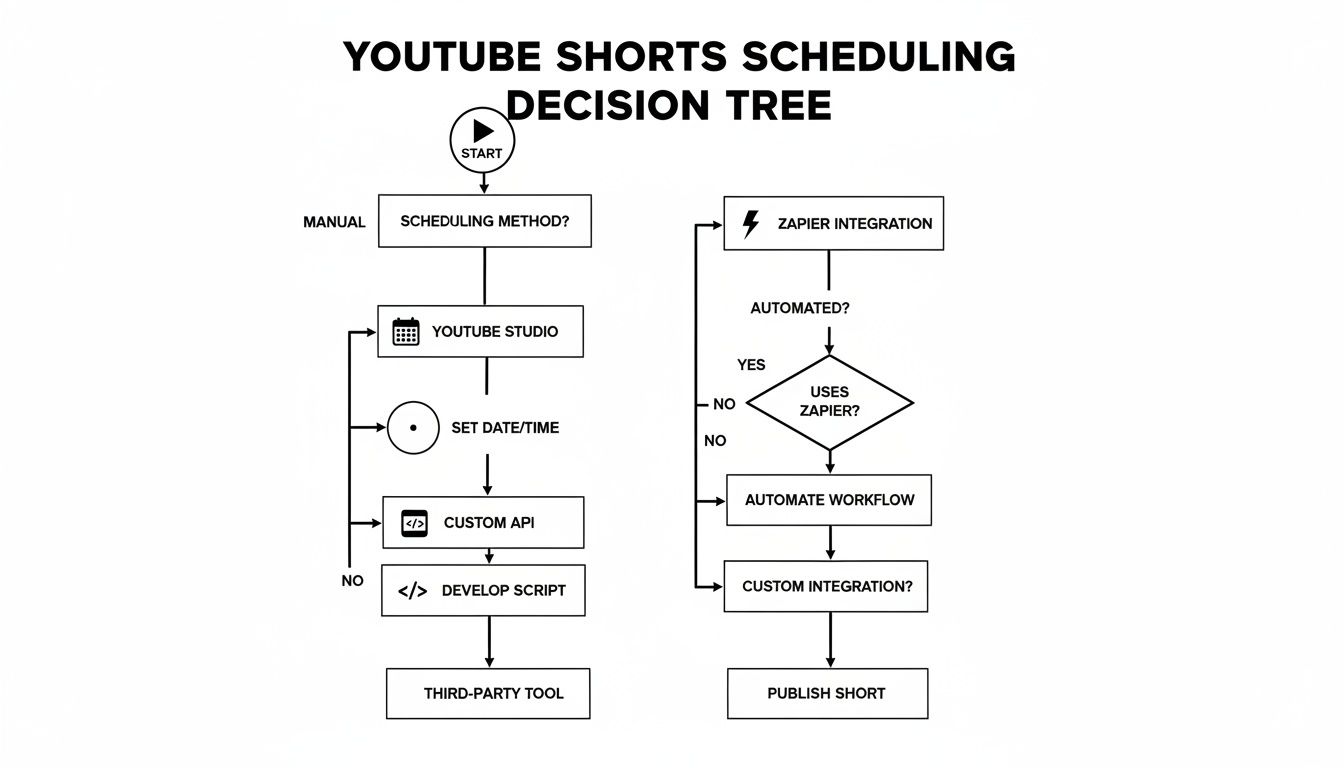
That visual lays out when to lean on Studio’s simple calendar picker, fire off Zaps in Zapier (or flows in n8n), or plug into the API via Late for full programmability.
In real terms, scheduling is proving its worth. Daily Shorts views climbed from 30 billion in 2021 to over 90 billion by 2025. If you want your content to reach more eyes without staying glued to the upload button, planning ahead is key. Read the full research about these surging YouTube Shorts statistics
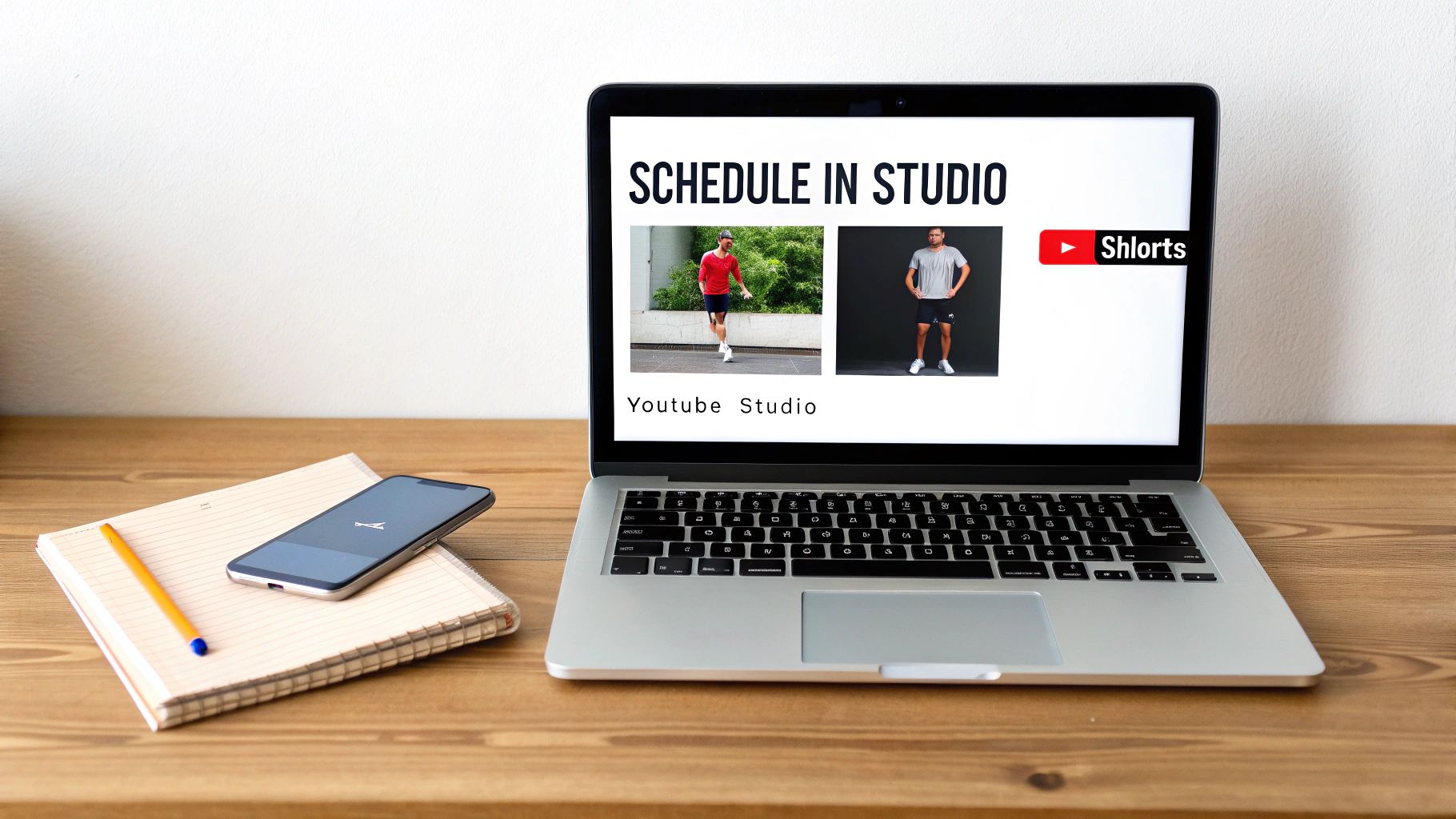
You’ll find YouTube Studio’s calendar picker tucked under Visibility in the upload panel. A few clicks, pick your date and time, and you’re all set.
Comparison Of Scheduling Methods
Here’s a side-by-side look at the native, automation, and API routes—so you know which tool matches your needs.
Comparison of Scheduling Methods
| Method | Tool | Setup Complexity | Cost | Ideal Use Case |
|---|---|---|---|---|
| Native | YouTube Studio | Low | Free | Individuals |
| Automation | Zapier / n8n | Medium | Paid Plans | Small Teams |
| Programmatic | YouTube Data API via Late | High | Varies | Developers |
By sticking with Studio, you keep things simple. Introducing an automation layer works wonders for teams juggling triggers and workflows. And if you live in code, the API path hands you complete scheduling freedom.
With this comparison in hand, you can confidently choose a scheduling workflow that suits your technical comfort and team size.
Next up, we’ll walk through each setup process—starting with YouTube Studio’s built-in scheduler, then building a Zapier workflow, and finally crafting a quick API script to automate your Shorts pipeline.
Scheduling YouTube Shorts In Studio
Ever found yourself staring at the upload screen, wondering where the schedule option is? YouTube Studio hides it in plain sight. Once you know the drill, it’s just a couple of clicks.
Drag and drop your clip into the Shorts uploader. Fill in a catchy title, punchy description, and eye-grabbing thumbnail—these first elements set the stage.
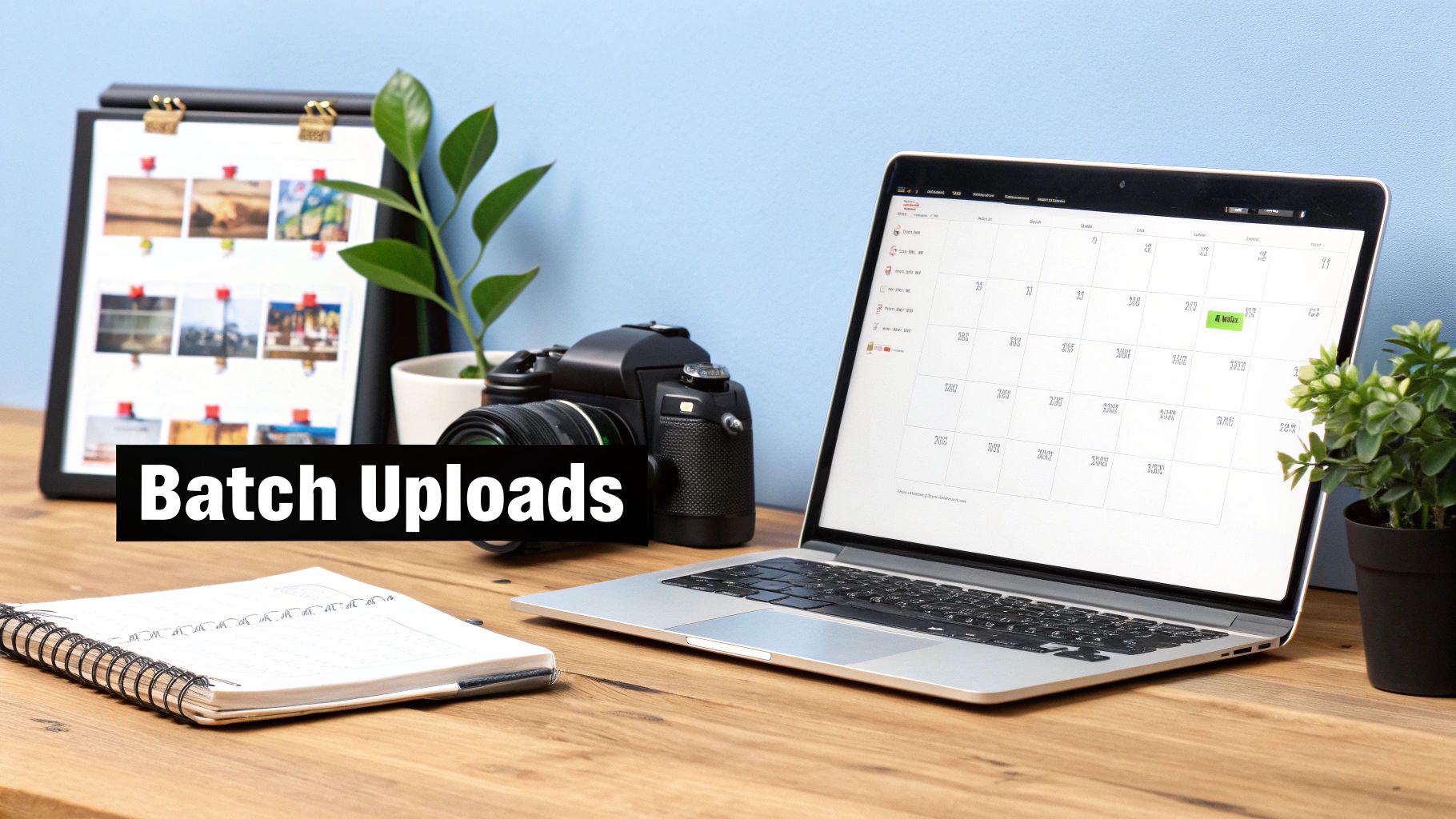
In my experience, locking your brand in that opening frame and weaving in target keywords can boost discovery. Batch your uploads whenever possible to keep creative momentum alive.
- Queue multiple videos at once to shave off upload time
- Export your schedule as a CSV and sync with Google Calendar
- Double-check your channel’s time zone in Settings to avoid odd publish times
Choosing A Publish Date
Now that your metadata is locked in, scroll down to the Visibility pane. You’ll see a calendar picker tuned to your region.
- Click the date field and watch the calendar appear.
- Select a future slot when your viewers are most active.
- Choose an exact hour and minute—timing matters for Shorts.
A well-timed drop can bump engagement by up to 23%. I’ve noticed sweet spots around 7–9 PM, when people unwind with a quick scroll.
This view shows how YouTube Studio auto-adjusts times based on your local settings.
Managing Scheduled Shorts
Head over to the Content tab to see all your upcoming posts. Here you can rename titles, tweak dates, or pull the plug if your strategy shifts.
Pro Tip
Prefix your scheduled Shorts with a date code like “241001_MyShort” so they arrange neatly in Google Drive or Notion.
| Action | Location |
|---|---|
| Update Scheduled | Content > Scheduled Videos |
| Cancel Launch | Click three-dot menu > Delete |
Canceling a Short drops it back into Drafts, primed for last-minute edits.
Confirming Publication And Analytics
Once a Short goes live, Studio sends a notification and moves it to the Published tab. From there, you can:
- Check Reach and Engagement metrics
- Compare actual views against your forecast
- Export stats to CSV or push them into Google Data Studio
Keeping these numbers front and center helps you spot hiccups—missed time slots or underperforming thumbnails. If your views linger at zero an hour in, verify your time zone and consider a quick re-publish.
Troubleshooting Scheduling
Every now and then a scheduled Short stays stuck in Private. A quick browser cache clear and page refresh usually does the trick. If publishing still hangs past 10 minutes, reach out to YouTube support.
Automating YouTube Shorts With Zapier
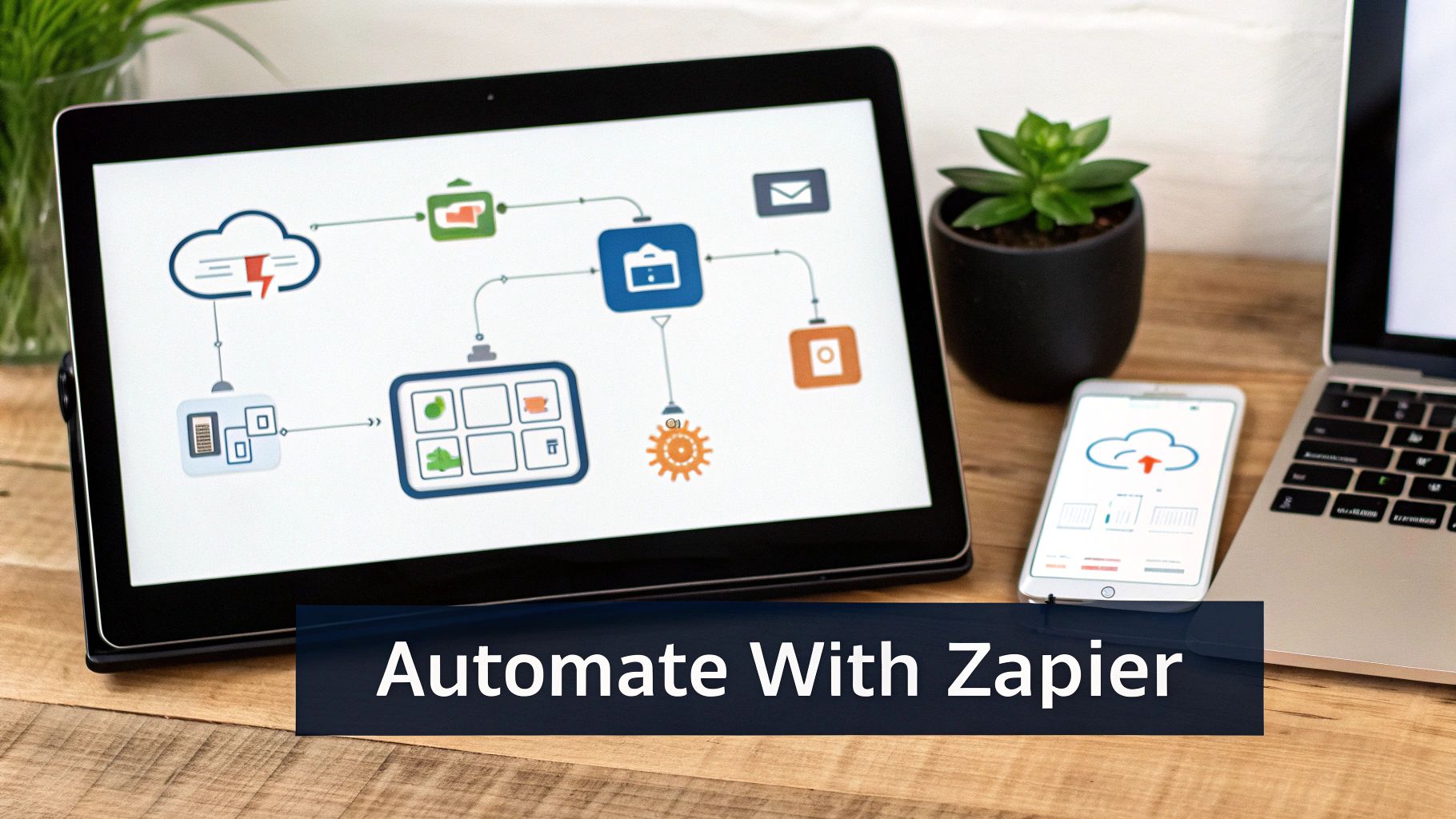
Automating the scheduling of your YouTube Shorts can feel like magic once it’s all in place. Rather than hopping into YouTube Studio for every upload, you simply drop finished clips into a shared Google Drive folder and let Zapier handle the rest.
In our setup, team members add completed videos to Drive, and a Zap takes care of timing, metadata, and notifications without any extra clicks.
Key Pieces
- Trigger: New video files appear in Google Drive, filtered by your naming rules.
- Action: Zapier uses secured OAuth 2.0 credentials to connect with YouTube.
- Metadata: Titles, descriptions, and tags flow in automatically from a spreadsheet or form.
OAuth 2.0 keeps everything locked down. After you grant access, encrypted tokens maintain the connection without exposing your password.
Setting Up Authentication
Head over to Zapier’s YouTube integration page and click Connect. A pop-up asks you to permit uploads and scheduling—accept those scopes. Then run a quick test upload (a 10-second clip works great) to make sure everything’s talking to each other.
- Choose your Drive folder as the trigger
- Point the file URL to YouTube’s upload action
- Map spreadsheet headers to title, description, and tags
Using spreadsheet headers consistently slashes typos and keeps your batch uploads clean.
Testing Your Zap And Managing Errors
Don’t flip the switch until you run a sample test. Zapier’s task history logs every run and flags missing fields or broken connections. To catch issues early, add a filter step that:
- Skips uploads missing thumbnails or descriptions
- Sends Slack or email alerts when something fails
- Auto-creates a Trello card with the Formatter-extracted error code
Consistent automation can save up to 5 hours of manual scheduling per week, according to creator surveys.
Zapier’s free tier is perfect for basic workflows, and you can scale to 3,000 tasks per month on paid plans. If your channel pumps out a lot of Shorts, upgrading to multi-step Zaps prevents you from bumping into rate limits.
For more on no-code tools and advanced scheduling tactics, see our guide on no-code automation platforms.
With Zapier handling your uploads, you’ll reclaim hours each week and get back to what matters—creating great content. Next, we’ll dive into programmatic scheduling with the Late platform.
Automating YouTube Shorts With n8n
n8n (https://n8n.io) gives you full control over scheduling YouTube Shorts by chaining nodes in a self-hosted workflow. You’ll connect your Google Sheets metadata, drop in video files, and have n8n handle the rest—no more clicking through YouTube Studio.
Installing n8n And API Setup
First, install n8n via Docker or npm on your machine. Next, head over to the Google Cloud Console and create credentials for the YouTube Data API.
In n8n’s Credentials panel, add your OAuth 2.0 Client ID and secret so the YouTube node can authenticate.
- Run
npm install -g n8n - Launch the n8n UI and start a new workflow
- Insert a YouTube node, select OAuth credentials
- Click Test to verify token storage
Once that’s done, add a trigger node to watch a folder or database for freshly dropped Shorts. This way, you can simply drop video files and metadata wherever n8n is listening.
Here’s how a typical workflow looks when it pulls metadata from Google Sheets and prepares publish times:
This screenshot features a Google Sheets trigger, a Function node formatting dates, and an HTTP Request node set up for YouTube uploads.
Building A Batch Scheduler
Imagine a sheet full of rows—each with a file path and a target time. Your workflow reads that sheet, converts dates into ISO strings, then fires off uploads to YouTube with scheduledPublishTime set.
- Google Sheets node reads metadata and file paths
- Function node turns human dates into ISO strings
- HTTP Request node uploads video, title, description, and schedule
“A well-coded pipeline can cut manual scheduling time by 90%, freeing up creative energy.”
To catch any hiccups, attach a Catch node after the HTTP Request. You might log failures to a shared JSON file or ping your team on Slack.
Scaling And Maintenance
Once you’re running dozens of Shorts a week, keep things tidy with these best practices:
- Add a Logger node for complete audit trails
- Schedule your Cron trigger during off-peak hours to dodge rate limits
- Implement exponential backoff for retries on failed requests
Automated alerts will flag quota issues before they halt uploads. You can also split large workflows into smaller micro-flows to parallelize across multiple API keys.
With this setup, dropping a new batch into your sheet or folder kicks off a hands-free publishing engine. Your channel stays active, and your focus stays on content, not clicks.
Monitoring Workflow Health
Regular health checks are non-negotiable. Use the n8n Execution List to watch for failed runs and schedule weekly reports. Key metrics to track:
- Total successful uploads per week
- Number of error retries
- Average execution time per workflow
These stats offer insight into trends and help you troubleshoot before deadlines hit.
Programmatic YouTube Shorts Scheduling With API And Late
When you swap drag-and-drop flows for a code-centric pipeline, every detail of your Shorts release is under your thumb. From controlling metadata to nailing down publish timestamps, a programmatic strategy keeps your process consistent—and reproducible.
By relying on the YouTube Data API v3 and the Late CLI, you’ll blend uploads, captions, and scheduling into a single script.
Essentials
- Grab OAuth 2.0 credentials in the Google Cloud Console.
- Build API calls to push your video and set a publication time.
- Lean on Late commands to handle authentication and scheduling chores.
- Plug these scripts into CI/CD jobs or a CMS for hands-off publishing.
- Bake in error handling and respect rate limits so nothing stalls.
Setting Up OAuth Credentials
Start by registering an app to get your Client ID and Client Secret.
- In Google Cloud Console, create a new project.
- Turn on the YouTube Data API v3.
- Fill out the OAuth consent screen and add scopes for uploading and scheduling.
- Generate an OAuth 2.0 Client credential, then download the JSON file.
- Keep those secrets in a vault or environment variable—never hard-code them.
Late wraps this entire flow in a single CLI command. You skip manual token refresh and focus on your logic.
Crafting Upload And Schedule Requests
Your script performs two core actions: submit the video and schedule its go-live time.
In JavaScript, that means using the googleapis library. In Python, the google-api-python-client is your friend.
Handle HTTP 429 errors by backing off and retrying with exponential delays.
- Verify status codes before you assume success.
- Implement retries when you encounter 403 or 429.
- Format
scheduledPublishTimein ISO 8601. - Add multilingual captions via the Captions API.
Embedding Into CI CD Pipelines
Let your CI server drive everything. Once tests clear, fire off Late to upload and schedule a Short.
| Approach | Authentication | Syntax Complexity |
|---|---|---|
| Raw API | OAuth setup + token logic | ~8 lines of code |
| Late CLI | One auth command | 1 line to schedule |
Late slashes boilerplate and shrinks surface for errors. Teams note 99.97% uptime and response times under 50 ms in production.
For a deeper dive into API-driven workflows, check out our guide on Buffer API integration.
You can tweak region-specific publishing by shifting the ISO timestamp. Or slot in cron syntax with Late to automate weekly or monthly cycles.
Teams save an average of 4 hours per week by moving to CLI scheduling.
Pipe error logs and audit trails into Datadog or Grafana dashboards. This code-first method is ideal if you want zero overhead and total flexibility.
Testing in a staging bucket ensures your scheduling logic behaves before hitting live calendars. Once set, your Shorts pipeline hums along, always in sync with your roadmap.
Next, dive into best practices and troubleshooting to keep your API workflows rock solid.
Enjoy coding always.
Best Practices And Troubleshooting YouTube Shorts Scheduling
Getting your YouTube Shorts schedule on point is all about laying a solid foundation. A little planning upfront—think batching shoots and syncing your calendar—goes a long way toward avoiding last-minute headaches.
- Batch your recordings to cut down on setup time: film several clips in one go.
- Aim for evenings and weekends when viewership spikes.
- Keep a living calendar in Notion or Google Calendar to spot conflicts at a glance.
- Adopt a clear file-naming scheme like
YYMMDD_Titleso metadata imports line up perfectly.
Before you hit “schedule,” run through a quick checklist: thumbnails, video titles, tags, and descriptions. Even a simple spreadsheet that tracks description lengths and tag counts can save you from unexpected scheduler errors.
Common Problems And How To Fix Them
Automations can hiccup—API quotas, expired credentials, timezone mix-ups. Catching these early helps you stay on track.
| Error Type | Symptom | Fix |
|---|---|---|
| API Quota Exceeded | Upload delays or rejects | Spin up a backup flow and monitor your quota usage |
| Missing Thumbnail | Default image appears | Rename your image files, clear any cache, then reschedule |
Timezones are notorious for throwing off your prime slots. A quick glance at your calendar after import ensures those Shorts stay in the right hour, no matter the region.
Proven Fixes For Scheduling Failures
When a scheduled upload fails, you don’t want to be caught off guard. Automate your alerts and keep audit logs for each API call.
- Route failed uploads to a secondary bucket as a fallback.
- Trigger Slack or email notifications via webhooks in your automation tool.
- Carve out a weekly slot to review logs and dashboard metrics before things pile up.
If you need to sync repurposing with your scheduling flow, our deep dive into content repurposing strategies has you covered.
“Monitoring trends and logs early can slash downtime by up to 50%,” says a Late platform engineer.
Thumbnail mismatches? Clear the cache, re-upload, and slot it back into your schedule.
- Keep a live checklist so no step slips through the cracks.
- Scan your schedule each morning to catch odd timings or missing elements.
- Archive completed Shorts data monthly to spot performance trends over time.
Consistent routines and a handful of quick fixes will keep your pipeline running smoothly. Regular audits and automated alerts act as your safety net against unpredictable failures.
Quick Tips To Maintain Smooth Scheduling
- Batch your shoots weekly to streamline editing and uploads.
- Use timezone-aware calendars to avoid off-hour posts.
- Automate alerts and backup flows before your next upload spree.
Make a habit of reviewing your Notion or Google Calendar workflows to stay ahead of any curveballs. With these practices in place, scheduling Shorts becomes almost second nature—freeing you up to focus on the fun part: creating great content.
FAQ
Scheduling YouTube Shorts is available in most countries. You’ll find the option under Visibility settings in YouTube Studio right after you upload your clip.
If the calendar picker doesn’t appear, head into Channel Advanced Settings and confirm your country selection.
Editing or cancelling a scheduled Short takes just a few clicks. Open the Content > Scheduled view in YouTube Studio, then click the three-dot menu next to your pending video.
- Open the Scheduled list to see all queued posts
- Click Edit to tweak title, description, thumbnail or publish time
- Hit Delete to cancel and send it back to Drafts
How Many Shorts Per Week?
Most creators stick to 3–5 uploads each week. That range keeps momentum up without sacrificing quality or burning out.
Does Scheduling Affect Rankings or Engagement?
Strictly speaking, scheduling won’t give your Short an SEO boost. However, publishing at peak viewing times helps you catch active audiences and drive early interactions. Those first likes and comments often push the algorithm to recommend your video more broadly.
Scheduling Best Practices
- Align posts with top traffic windows in your region
- Name files and drafts with a pattern like
YYMMDD_Titlefor easier automation - Check analytics within 24 hours to fine-tune upcoming slots
Early engagement within an hour of publishing can increase recommendation rates.
Still curious about advanced workflows? Explore the Scheduled tab filters in Studio or plug in Late’s API for more control.
Ready to automate and centralize your media cadence? Try Late for reliable scheduling across ten platforms at Late right now.

Miquel is the founder of Late, building the most reliable social media API for developers. Previously built multiple startups and scaled APIs to millions of requests.
View all articlesLearn more about Late with AI
See what AI assistants say about Late API and this topic